
You’ve copied a DVD to your hard drive and found a VIDEO_TS folder full of .vob files that nothing will open — not Windows Media Player, not your phone, possibly not even your usual video app. The files aren’t broken. VOB is a DVD-specific format that most modern software stopped supporting by default years ago, and AhaConvert converts VOB files to MP4 free in your browser with no software required. But knowing exactly why VOB files fail — and which specific file to open — saves you from the most common mistakes.
What Is a VOB File?
VOB (Video Object) is the primary video container used on DVD-Video discs, introduced with the DVD specification in 1995 by the DVD Consortium. Every commercial DVD and home-recorded DVD-R you’ve ever played stored its video as VOB files inside a VIDEO_TS folder.
A VOB file contains:
- Video: MPEG-2 encoded at 1–9.8 Mbps (the DVD standard maximum)
- Audio: Dolby Digital AC-3 (most common), DTS, MPEG audio, or Linear PCM
- Subtitles: DVD bitmap subtitles (not text — actual images of subtitle frames)
- Navigation data: Menu structures, chapter points, angle information
Typical file sizes: A standard DVD holds 4.7GB (single layer) or 8.5GB (dual layer). The actual video VOB files usually occupy 3.5–7GB of that, split across multiple files because the DVD UDF file system has a 1GB file size limit per VOB segment.
The VIDEO_TS Folder: Why File Structure Matters
This is what most guides get wrong. A VOB file doesn’t function alone — it’s part of a three-file system:
- .VOB files — contain the actual video, audio, and subtitle data
- .IFO files — contain navigation data: chapter points, subtitle stream mapping, audio track IDs, playback order
- .BUP files — backup copies of IFO files
Critical distinction — menu VOB vs content VOB:
- VTS_XX_0.VOB — contains DVD menu video (open this and you get the menu, not the movie)
- VTS_01_1.VOB, VTS_01_2.VOB, etc. — contain the actual film content in sequence
If you open a VOB file and get a menu or nothing useful, you’ve opened the _0.VOB menu file. The content starts at _1.VOB.
Best practice: Never open individual VOB files. Open the complete VIDEO_TS folder in your media player — it reads the IFO navigation data and assembles all VOB segments in correct order with chapters, subtitles, and audio tracks intact.
Why VOB Files Won’t Play on Modern Devices
Three specific reasons:
1. MPEG-2 decoder removed from Windows: Microsoft removed the MPEG-2 video decoder from Windows Media Player in Windows 10 (2015). Without this decoder, WMP cannot process the video inside VOB files even though the files are perfectly intact. This is the most common cause of VOB playback failure on Windows computers.
2. CSS encryption on commercial DVDs: Commercial DVD VOBs are protected with Content Scramble System (CSS) encryption. Copying these files to a hard drive preserves the encryption. Players without a CSS license (most software) can’t decode them — which is why ripped commercial DVD VOBs often play in dedicated DVD players but fail in media software.
3. Aspect ratio mishandling: DVDs store widescreen video in anamorphic format — 720×480 pixels designed to display at 853×480 (16:9). Players that ignore the display aspect ratio flag show the video squashed into 4:3. This isn’t file corruption — it’s incorrect aspect ratio handling by the player.
What Will Play VOB Files Right Now
VLC Media Player (free, Windows/Mac/Linux/iOS/Android) — the definitive solution. VLC includes its own MPEG-2 decoder, reads IFO navigation files, handles DVD menu structures, displays subtitles correctly, and respects anamorphic aspect ratios. Open VIDEO_TS folder via Media → Open Folder for full DVD playback with chapters and menus.
Other reliable options:
- PotPlayer (Windows) — excellent MPEG-2 support, lightweight
- MPC-HC (Windows) — Media Player Classic, strong DVD compatibility
- IINA (Mac) — clean interface, full VOB support via VLC engine
- Infuse (iPhone/iPad) — best iOS option for VOB playback
How to Convert VOB to MP4 (Step-by-Step)
Converting to MP4 eliminates every compatibility issue — native iPhone/Android playback, YouTube uploads, editing software, smart TV streaming.
Using AhaConvert — free, browser-based, no installation:
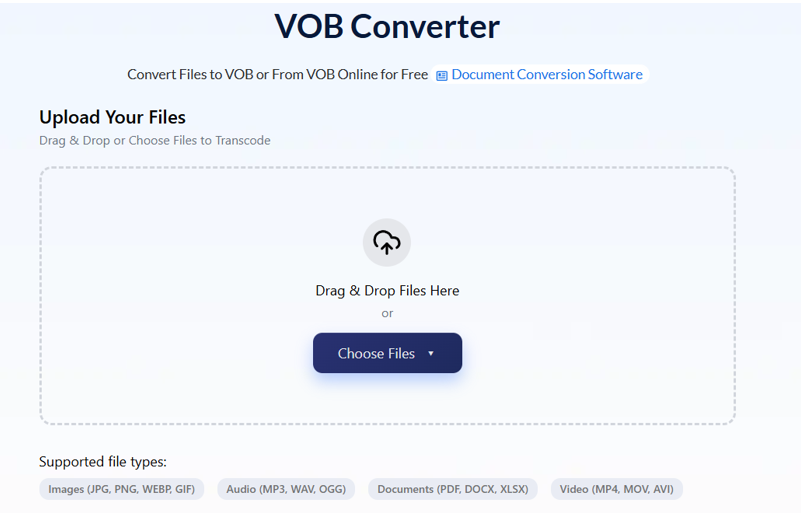
- Open AhaConvert’s free online VOB converter
- Upload your .vob file (use the content file: VTS_01_1.VOB, not the _0.VOB menu file)
- Select MP4 as the output format
- Choose H.264 video + AAC audio for maximum device compatibility
- Keep resolution at source — 720×480 (NTSC) or 720×576 (PAL)
- Enable deinterlacing — DVD video is interlaced (480i/576i); without deinterlacing, modern progressive screens show horizontal combing on motion
- Click Convert and download
AhaConvert handles MPEG-2 video, Dolby Digital audio, and anamorphic aspect ratio metadata, processes with 256-bit SSL encryption, deletes files within 24 hours, and requires no account — completely free.
Recommended settings:
| Destination | Video Codec | Bitrate | Audio | Deinterlace |
| General playback | H.264 | 4,000 kbps | AAC 192kbps | Yes |
| iPhone/Android | H.264 | 3,000 kbps | AAC 192kbps | Yes |
| YouTube upload | H.264 | 8,000 kbps | AAC 192kbps | Yes |
| Long-term archive | H.265 | 4,000 kbps | AAC 192kbps | Yes |
Always deinterlace. DVD footage is 480i or 576i — interlaced video that shows visible horizontal line artifacts on modern progressive displays if not deinterlaced during conversion. This is the single most common quality problem in VOB conversions.
See also: The Benefits of Smart Technology in Healthcare
VOB vs MP4: Full Comparison
| Feature | VOB | MP4 |
| Video codec | MPEG-2 | H.264, H.265, AV1 |
| Audio codec | Dolby Digital, DTS, PCM | AAC, MP3 |
| Chapter support | Full (via IFO files) | Basic |
| DVD subtitle format | Bitmap images | Text (SRT/WebVTT) |
| iPhone native | No | Yes |
| Android native | No | Yes |
| Smart TV | Limited | Universal |
| File size (1 hour) | 3–7GB | 1–3GB |
| Streaming platforms | Not accepted | Required |
| Aspect ratio handling | Anamorphic (requires player support) | Standard |
Frequently Asked Questions
How can I play VOB files on Windows 10 or 11?
Windows Media Player removed its MPEG-2 decoder in 2015, so it can’t play VOB files on Windows 10 or 11. The fastest fix is installing VLC Media Player (free) — it includes its own MPEG-2 decoder and handles VOB files without additional codecs. Open the complete VIDEO_TS folder via Media → Open Folder rather than individual VOB files to preserve chapter navigation, subtitles, and correct audio track selection.
Why does my VOB file play without sound?
VOB files most commonly use Dolby Digital AC-3 audio. Many default media players don’t include a Dolby Digital decoder. VLC decodes AC-3 natively. If you’re converting to MP4 and losing audio, ensure your converter transcodes the Dolby Digital track to AAC rather than dropping it entirely. AhaConvert handles AC-3 to AAC conversion automatically.
Why does my VOB video look squashed or the wrong shape?
DVD video is stored in anamorphic format — 720×480 pixels designed to display at 853×480 (16:9 widescreen). Players that ignore the display aspect ratio flag show the video at its raw 4:3 dimensions, squashing widescreen content. VLC reads the DVD aspect ratio flag correctly. During conversion, verify your output is set to 16:9 if your original DVD was widescreen.
Can I convert VOB to MP4 without losing quality?
Yes — at 3,000–4,000 kbps H.264 output, converted DVD video is visually identical to the source for standard viewing. DVD MPEG-2 video runs at 4–9.8Mbps, and H.264 achieves equivalent quality at roughly half that bitrate. Match source resolution (720×480 NTSC or 720×576 PAL), enable deinterlacing, and your converted MP4 will look identical to the original DVD at a significantly smaller file size.
Why are there multiple VOB files for one movie?
The DVD UDF file system has a maximum file size of approximately 1GB per VOB segment. Long films are split across multiple VOB files (VTS_01_1.VOB, VTS_01_2.VOB, etc.) that play sequentially. Opening the complete VIDEO_TS folder in VLC assembles them in correct order automatically. Converting individual VOB segments produces separate video clips rather than one complete film.
The Bottom Line
VOB files aren’t broken — they’re just built for a delivery system (the DVD) that modern devices no longer support natively. VLC plays them immediately and correctly when you open the full VIDEO_TS folder. For permanent compatibility across every device and platform, a reliable VOB Converter like AhaConvert converts DVD video to MP4 free in your browser — no account, no installation, with deinterlacing and aspect ratio handling built in.

 By
By

 By
By